

Page on the dashboard: dashboard.biolovers.site/dashboard/edit/media/audio
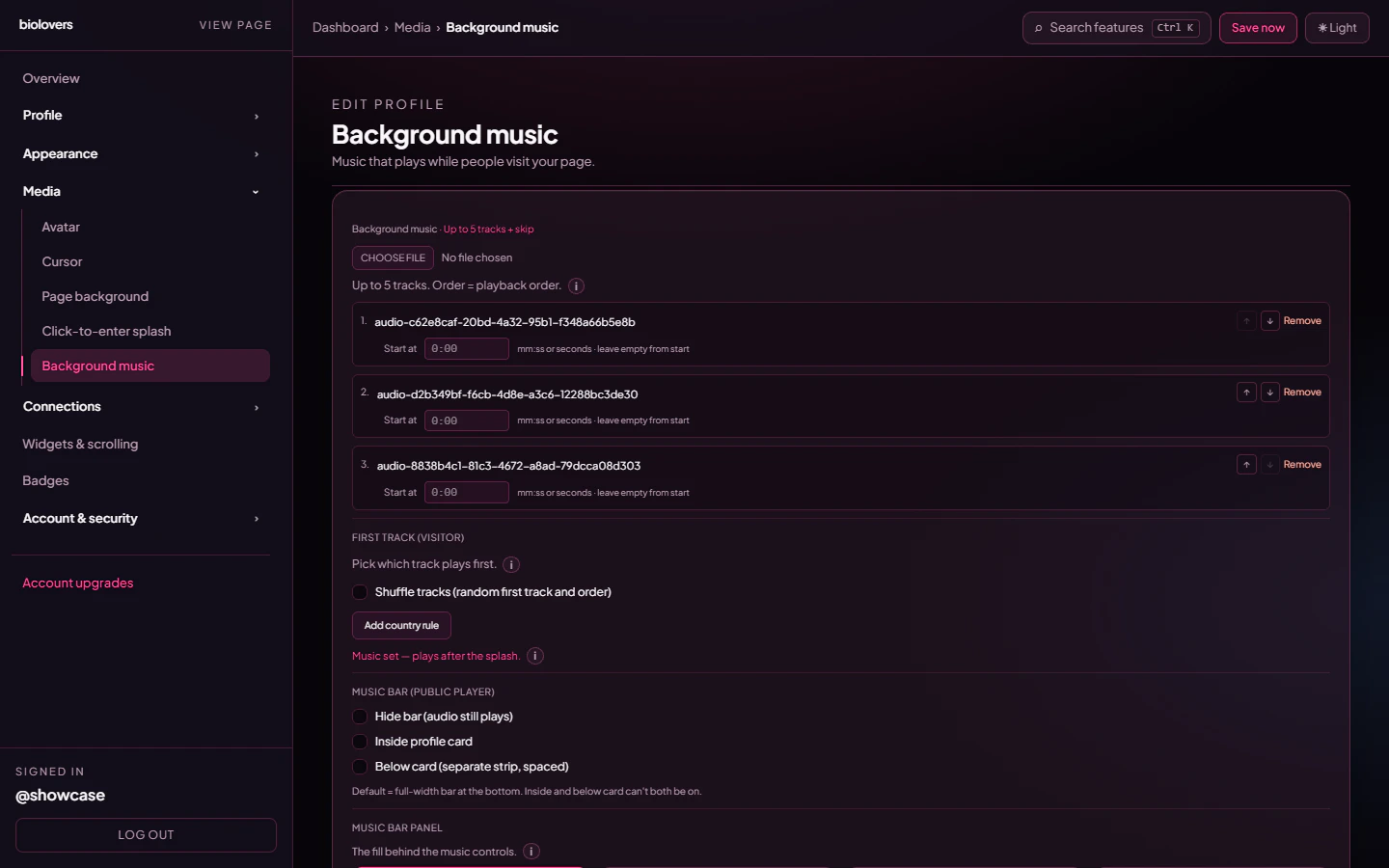
Background music panel with three tracks loaded — each row has ↑ / ↓ to reorder, a Start-at offset, and Remove.
Add a track
- Pick a file in the upload slot.
- Formats: MP3 (audio/mpeg) / OGG / WAV / M4A / MP4 audio. FLAC is not supported.
- Max 20 MiB per file.
- Title and artist are read from the file’s embedded tags. If they’re missing, we show the filename.
Slots
Reorder tracks (the ↑ / ↓ arrows)
Each track row has ↑ and ↓ buttons next to Remove. Tap them to move that track up or down in the list. There is no drag-and-drop — use the arrows. Track 1 (top) is the default starting song; the player walks down the list from there. In the screenshot above the third row’s ↑ is enabled and the first row’s ↑ is disabled (greyed out) because it’s already at the top — same for the last row’s ↓.Per-track start offset
Each row has a Start at field (mm:ss or seconds, e.g. 0:30, 45). Leave empty to start from the beginning. Useful for skipping intros.
Shuffle (Premium)
When you have at least two tracks and you’re on Premium, the First track (visitor) section unlocks. Tick Shuffle tracks (random first track and order) to randomise the starting track on every visit and shuffle the rest of the queue: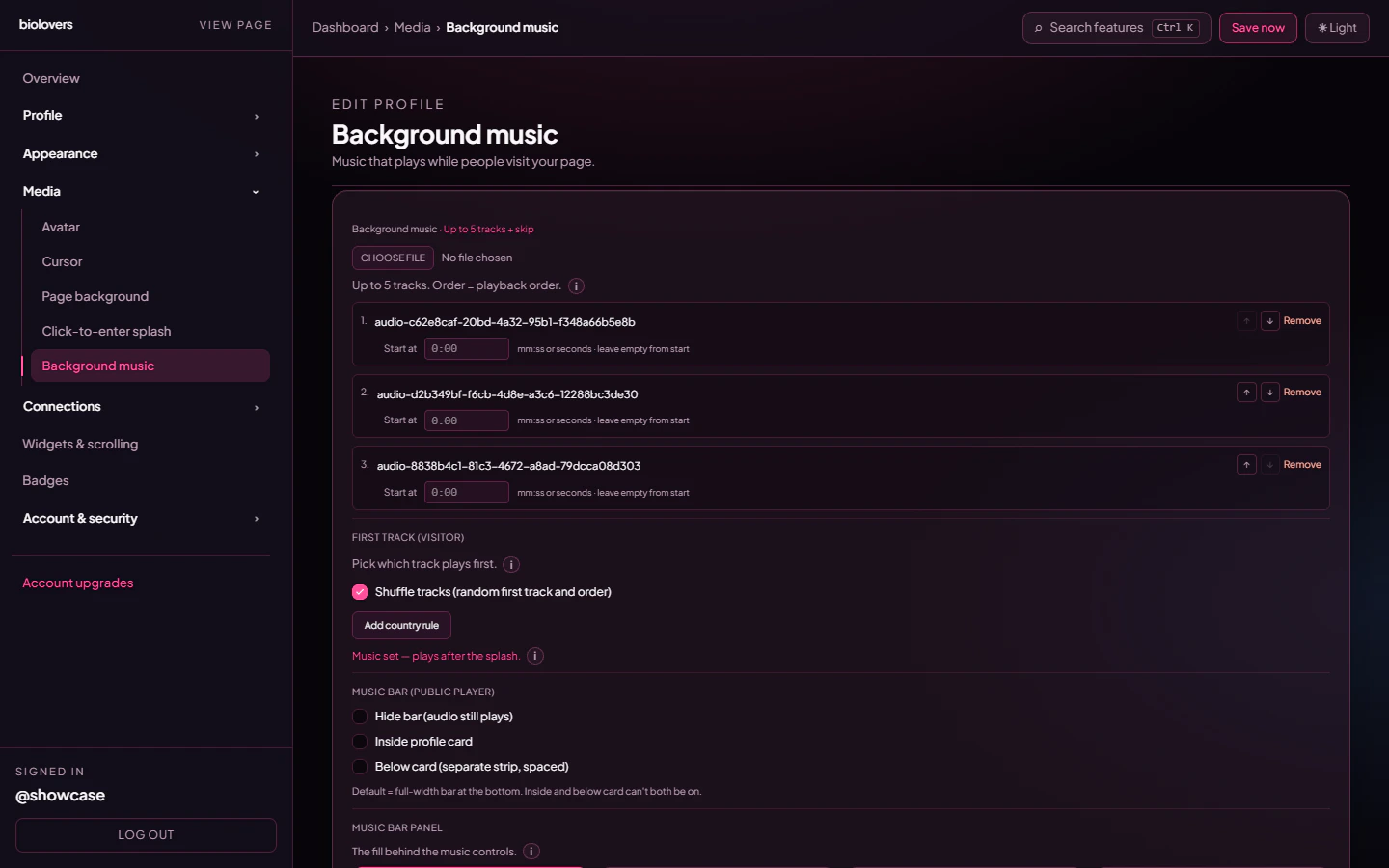
Shuffle on — every visitor gets a random starting track and a re-shuffled queue.
Country rules — pick a starting track per country (Premium)
Click Add country rule to add a row. Each rule is Country (dropdown of every ISO country) + Play first (which track number plays first for visitors from that country). Visitors from a listed country always hear that track first; everyone else falls back to shuffle (if on) or Track 1.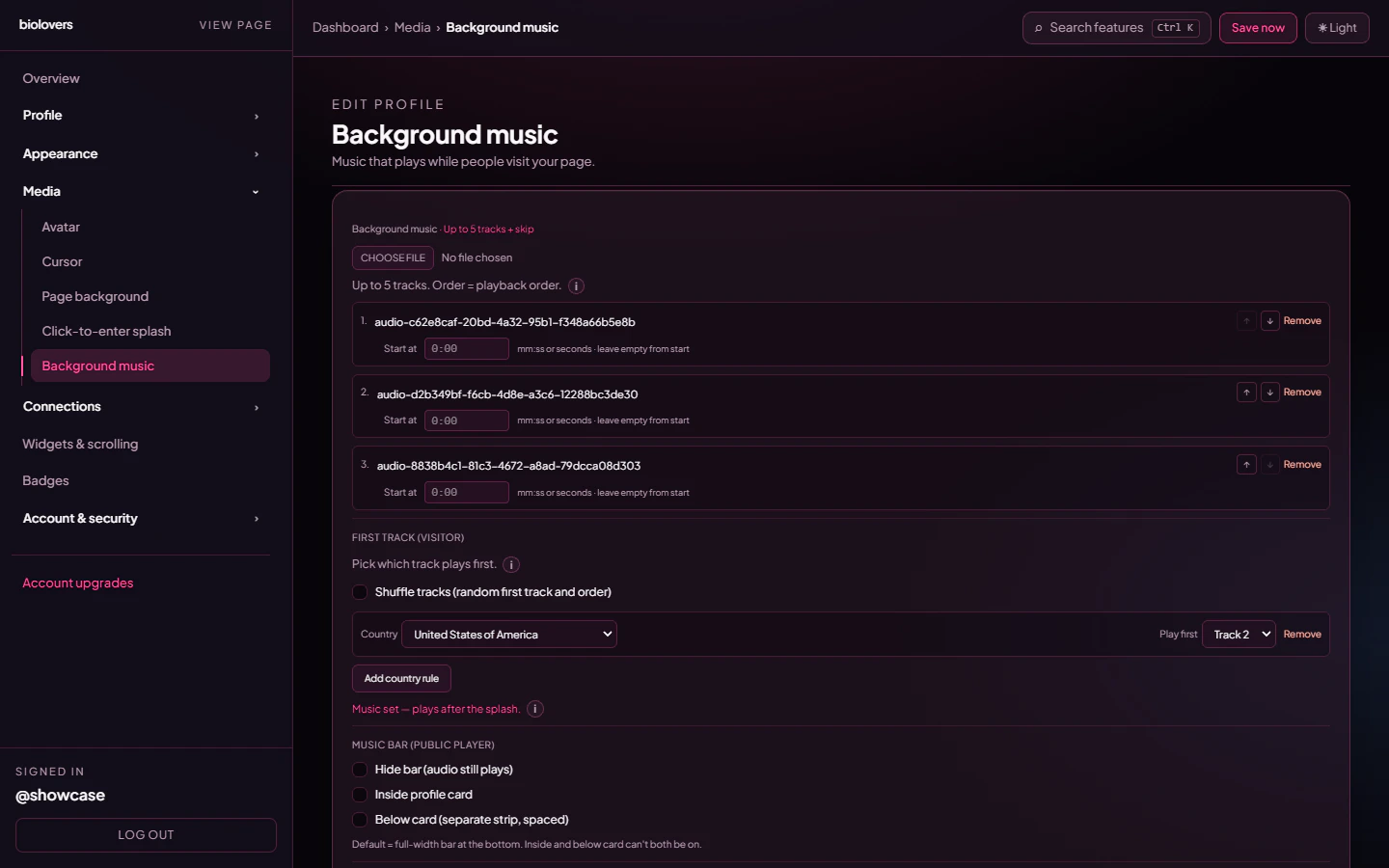
One country rule: visitors from the United States hear Track 2 first.
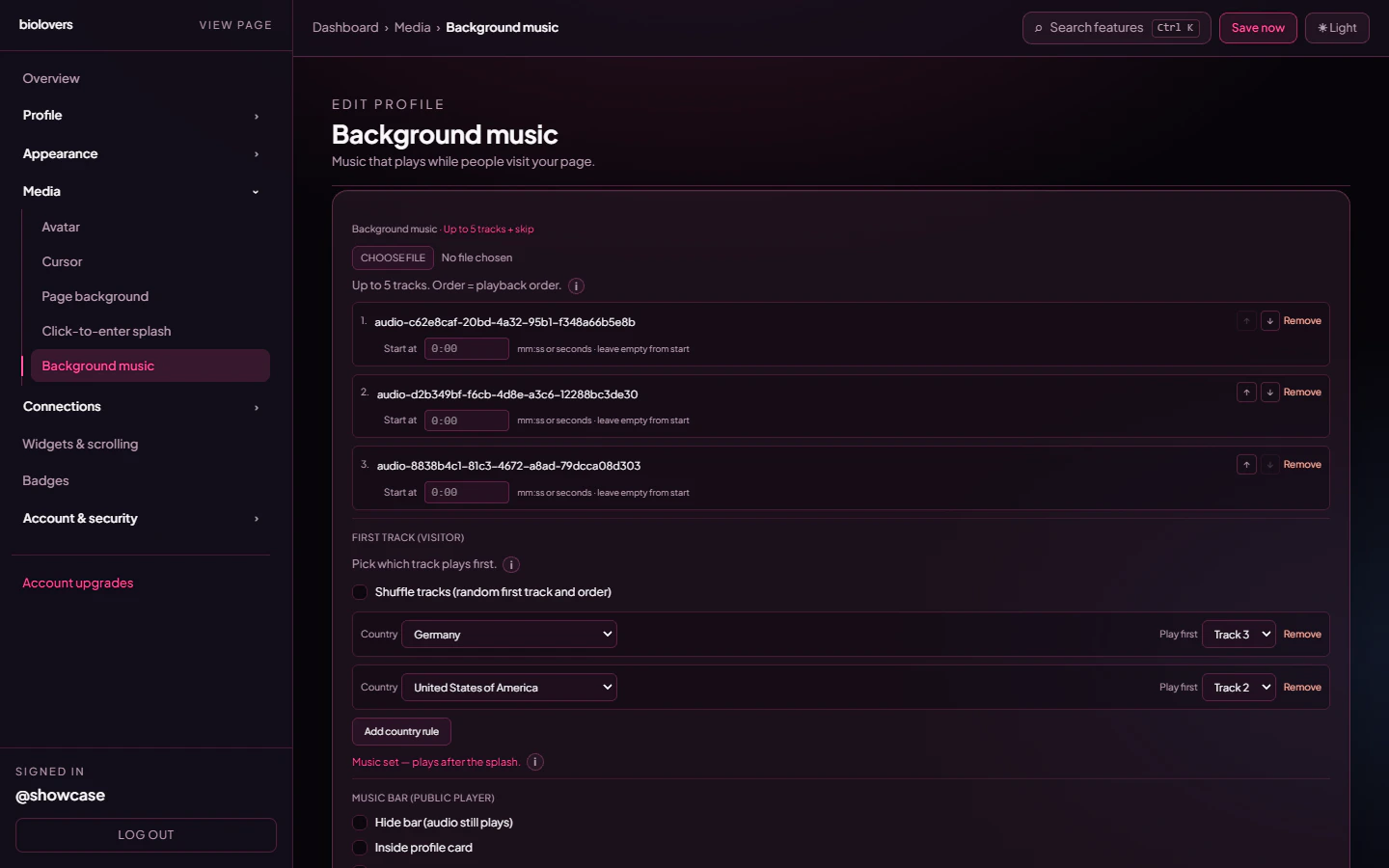
Two country rules: Germany → Track 3, United States → Track 2.
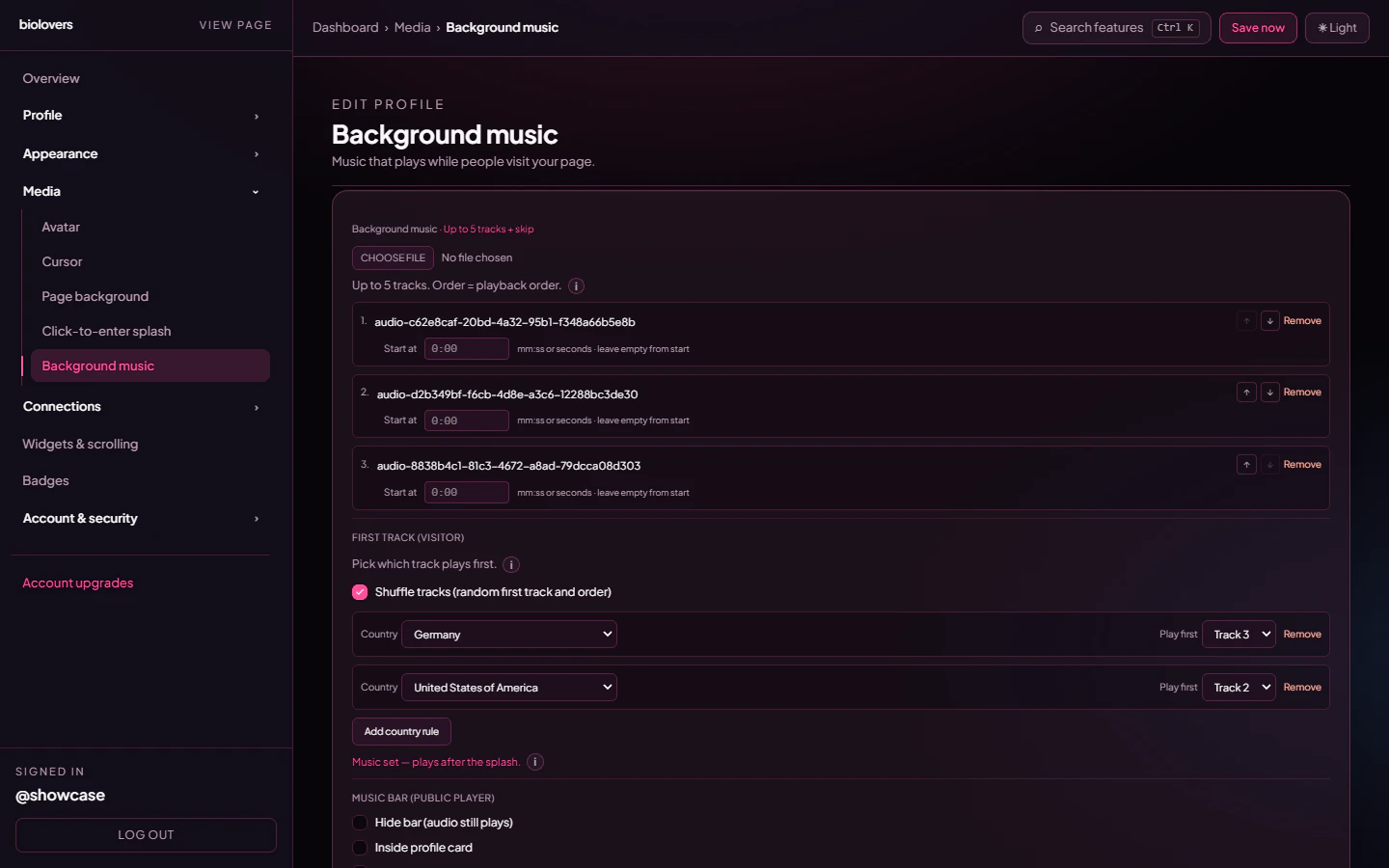
Shuffle + country rules together. Mapped countries get a fixed first track; everyone else is shuffled.
Use music from background video
Tick Use music from background video to play sound from your page background video instead of uploaded tracks.- After the splash, sound comes only from the backdrop video — not from uploaded tracks.
- There is no music bar in this mode.
- The video needs an audio track or the page stays silent.
- Upload a self-hosted video under Page background first; until then the option warns that visitors won’t hear anything.
- Uploaded tracks stay on your account but are not played on the public profile while this is on.
Music bar (the on-page player)
After at least one track is uploaded, the Music bar (public player) section unlocks. The real toggles are:
Default (both off) is a full-width bar at the bottom of the page.
There are no dashboard toggles for autoplay, loop, shuffle (free), or default volume — playback is autoplay-on-tap, looping, in upload order, with the visitor controlling the volume from the player itself. The “music starts after the splash” behaviour is automatic when Splash is enabled.
Music bar panel (the bar’s chrome)
Below the placement toggles, Music bar panel picks the fill behind the controls:Music bar blur (Premium)
Opt-in checkbox + slider,0–50 px. Override the panel’s baked-in blur. Only visible on glass / transparent music bar panels.
Tips
- Pair a splash screen with music. The visitor’s tap on the splash counts as the interaction browsers need to allow audio.
- Loud tracks sound much louder than the visitor expects. Normalize your tracks before upload.
- For Premium playlists, group songs by mood — there’s no per-track crossfade.
Common questions
Music doesn't autoplay
Music doesn't autoplay
See the dedicated page: Audio won’t autoplay. Adding a splash is the most reliable fix.
Where do I get free, legal music?
Where do I get free, legal music?
YouTube Audio Library, Free Music Archive, or buy a track on Bandcamp / royalty-free libraries. Don’t upload songs you don’t have rights to — DMCA takedowns can suspend your profile.
My MP3 won't upload
My MP3 won't upload
Check the file is under 20 MiB and is one of MP3 / OGG / WAV / M4A. FLAC is rejected — re-encode it as 192 kbps MP3.
Can I use a Spotify / SoundCloud link instead of uploading?
Can I use a Spotify / SoundCloud link instead of uploading?
Not as background music. You can show a Spotify / SoundCloud embed in a widget — but the embed has its own play button, not autoplay. Or use Use music from background video if your backdrop video already has the audio you want.
How do I drag tracks to reorder them?
How do I drag tracks to reorder them?
The dashboard uses ↑ / ↓ arrow buttons on each track row, not drag-and-drop.
Why is there no music bar?
Why is there no music bar?
Use music from background video is on — that mode plays only the backdrop video’s audio and hides the bar. Turn the toggle off to use uploaded tracks again.