

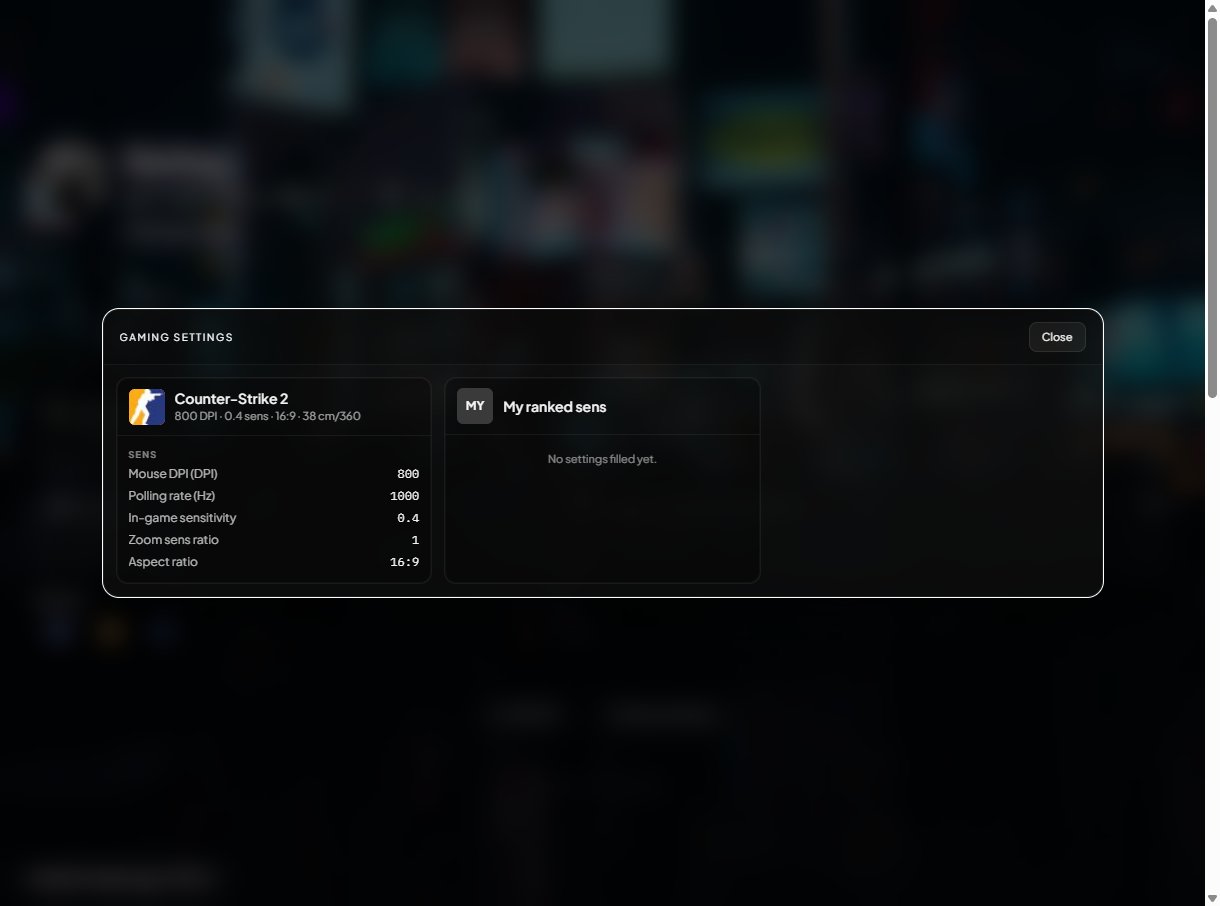
Gaming settings widget on the public profile.
Add a game from the catalog
- Open Widgets.
- Tap + Add widget → Gaming settings.
- Tap + Add game at the bottom of the new widget.
- Pick the title from the catalog grid.
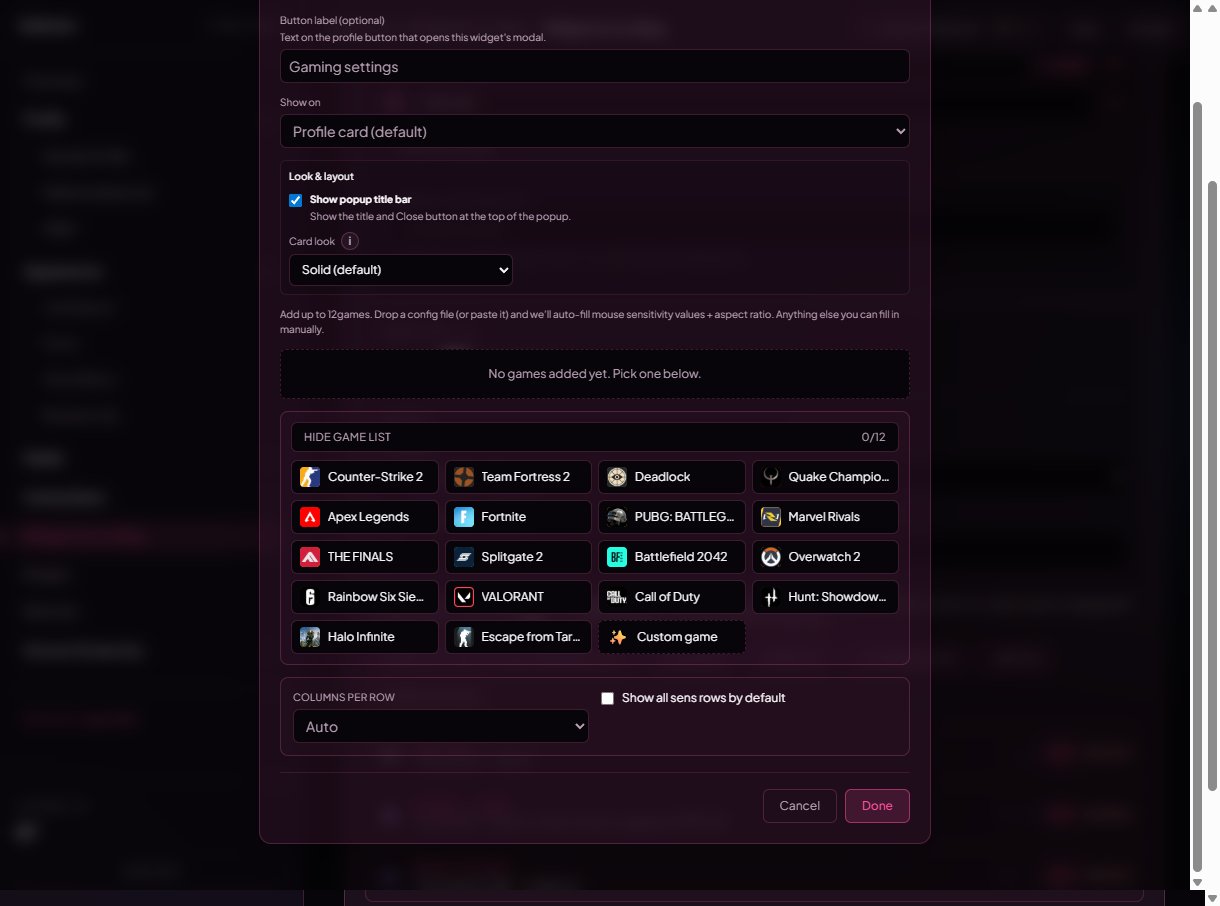
Catalog picker — click a tile to add the game to your widget.
Auto-fill from your config file (free + Premium)
Each catalog game has a fixed spot on disk where its config file lives. Tap “Where is my config file?” on the entry to see the default OS paths.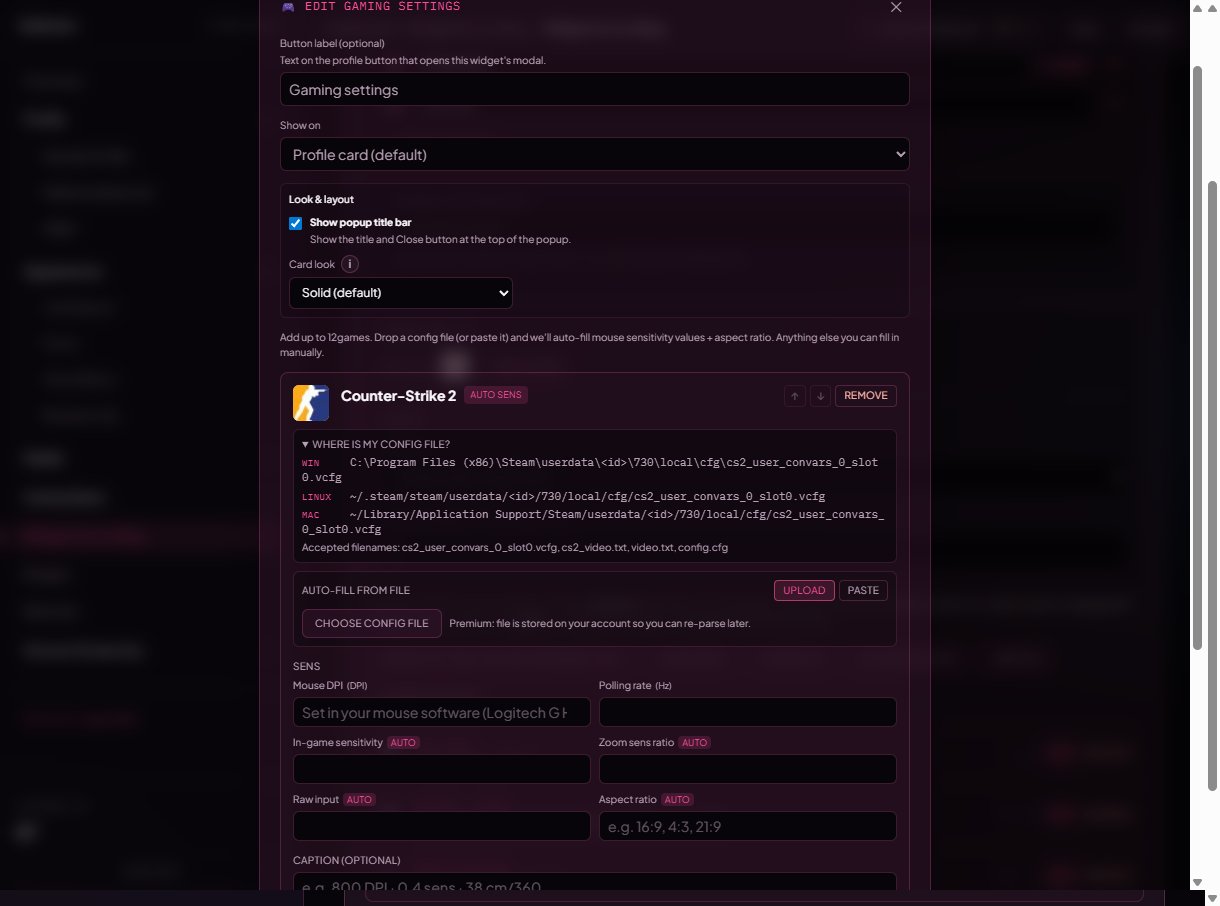
Per-game config-file paths — Windows, macOS, Linux as available.
Upload tab
- Tap Upload (selected by default).
- Tap Choose config file and pick the file from disk.
- We parse it, fill the sens table, and (if the parser found a useful note) drop it into the Caption field.
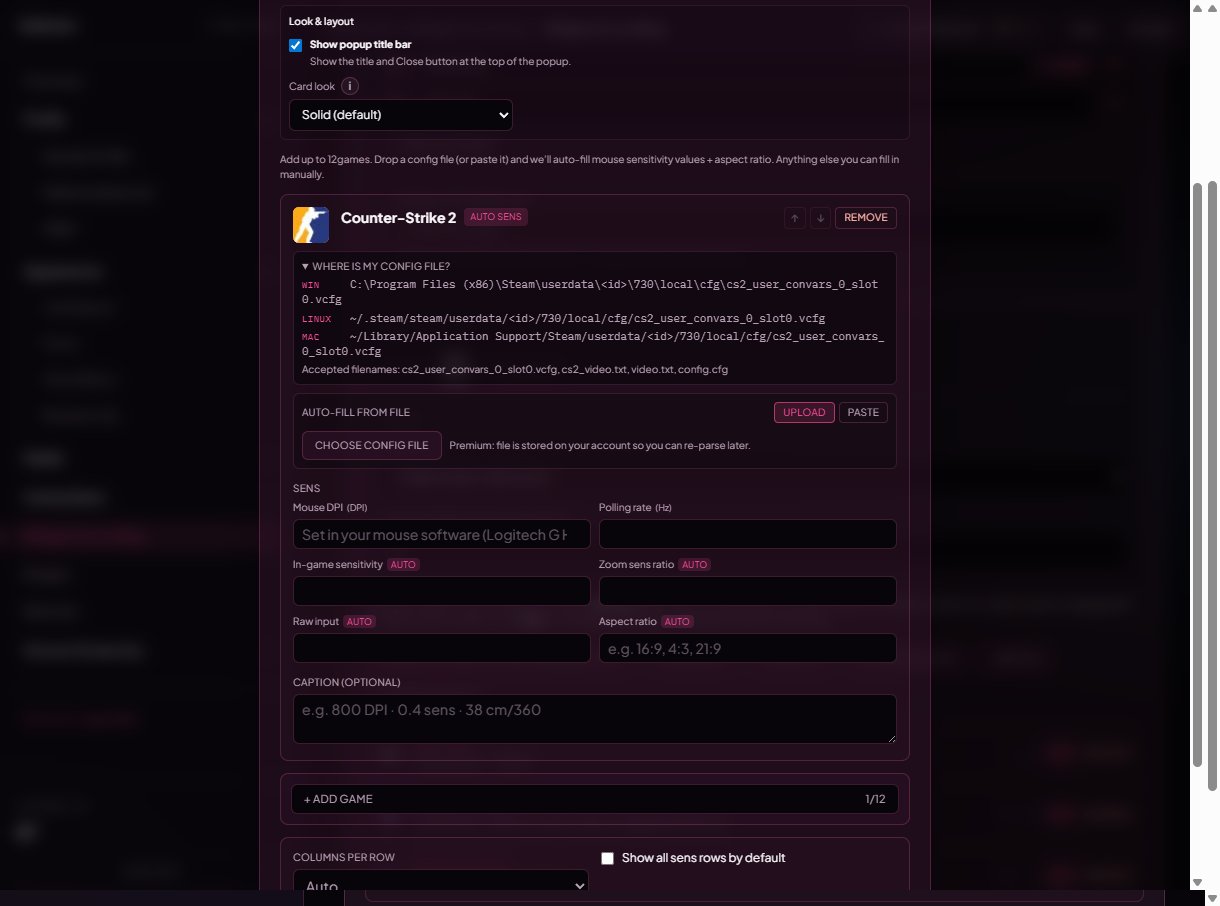
Upload mode — choose a config file and we parse it on save.
- Free accounts: the file is parsed in memory on the server and immediately discarded — only the extracted numbers are saved.
- Premium accounts: the file is stored on your account so you can re-parse it later (after a config change). A Forget stored file button appears next to the picker once you have one stored.
cfg, vcfg, ini, txt, txt0, txt1, cst, json, xml. Max 512 KiB total (most games are under 64 KiB).
Paste tab
If you can’t upload from disk (school PC, work laptop, mobile), open the file in any text editor, copy the contents, then:- Tap Paste.
- Paste into the box.
- Click outside the box — we parse on blur.
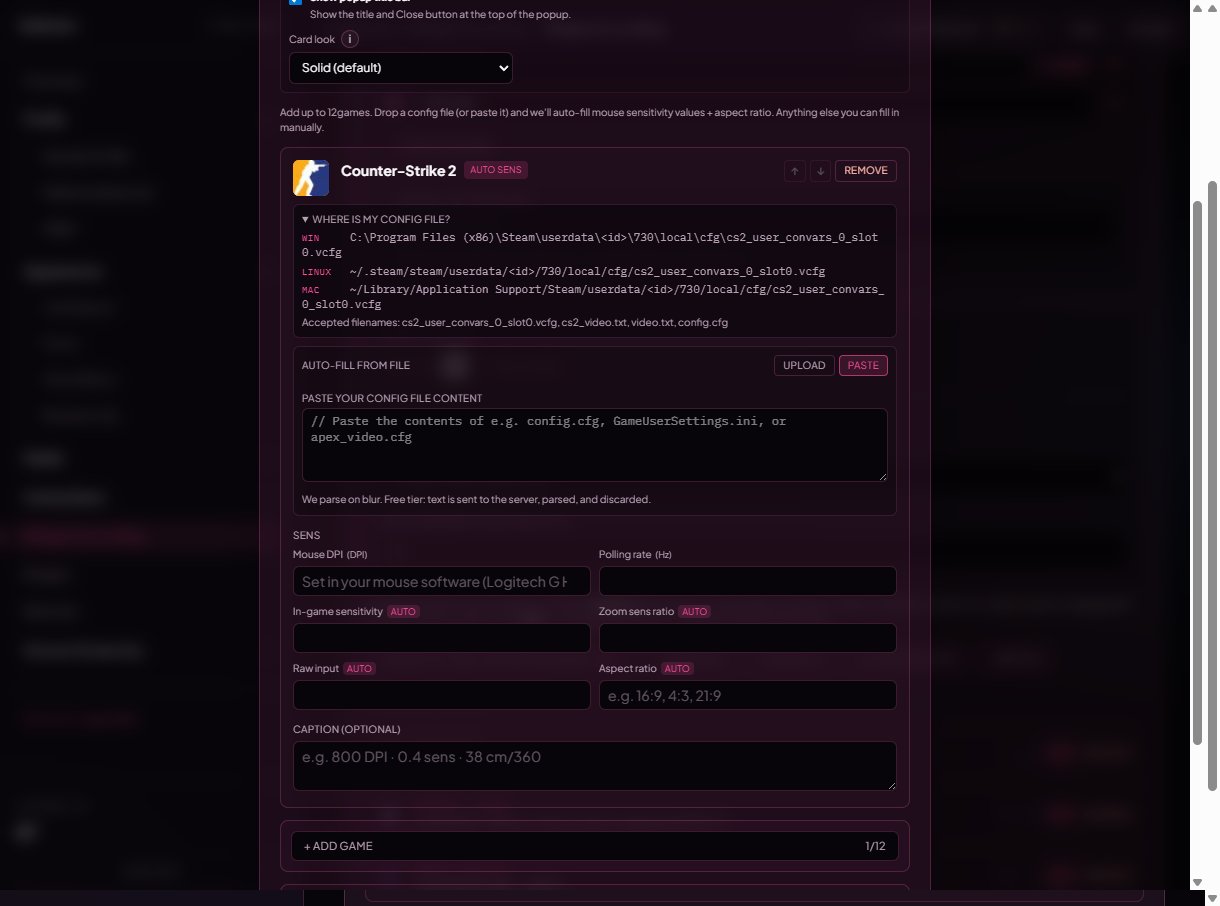
Paste mode — same parser, no upload needed.
Cloud-sens games
Apex, Fortnite, PUBG, Marvel Rivals, The Finals, Splitgate 2, and VALORANT keep mouse sens on the publisher’s servers, so the local config doesn’t have your sens in it. The editor hides the upload tab for those games and shows a “fill the fields below manually” notice instead — copy the numbers from the in-game settings screen.Edit the numbers manually
Whether the parser ran or not, every entry has an editable sens table.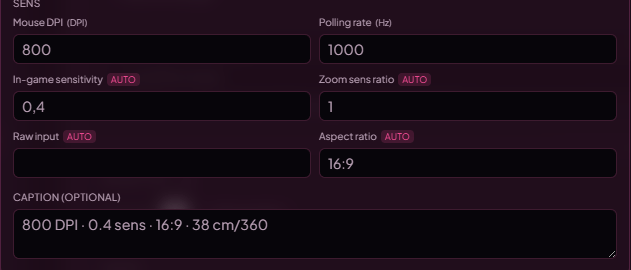
Sens table — fixed catalog fields per game (e.g. CS2 has DPI, polling rate, sens, zoom sens, aspect ratio).
- Each catalog game has a fixed list of fields (DPI, polling rate, sens, ADS / scope variants, aspect ratio, etc.). You can leave any field blank — empty fields are dropped on save and never appear on the public widget.
- Aspect ratio is a free-form string (
"4:3","16:9","21:9", etc.). The parsers compute it from the resolution stored in the config when present. - The auto-fill only ever overwrites fields the parser knows about — anything you typed manually that isn’t part of the parsed set is left alone.
Caption
Each entry has an optional Caption (max 400 chars). It shows under the game title on the public profile. Examples:800 DPI · 0.4 sens · 38 cm/360Same setup since Premier S2.4:3 stretched, classic feel.
Custom games (Premium)
Need a game we don’t catalog yet? Tap the Custom game tile in the picker (Premium-only) to add a fully blank entry.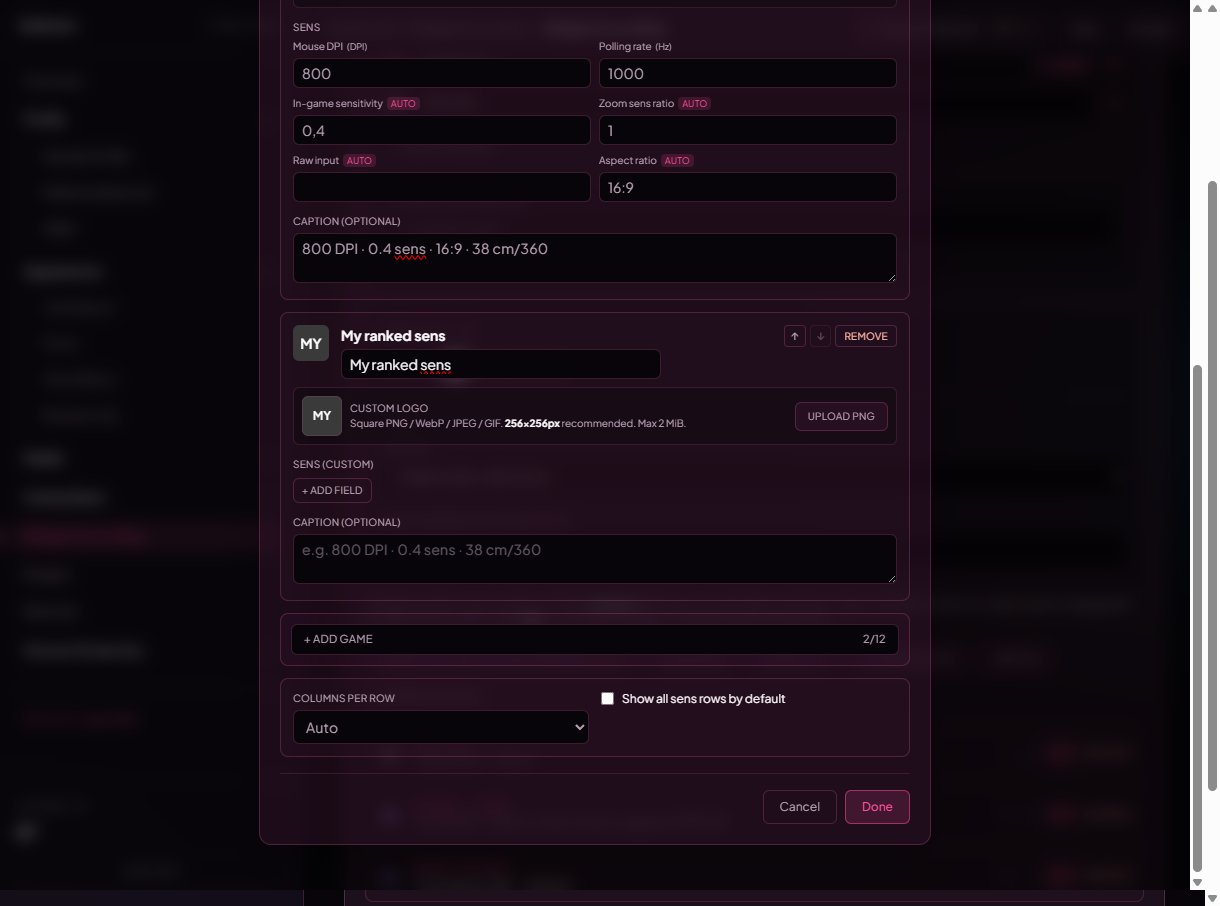
Custom game entry — your own label, your own sens fields, and an optional uploaded logo.
- Game name — free text, used as the card title.
- Custom logo — upload your own square PNG / WebP / JPEG / GIF (max 2 MiB, 256×256 recommended). Falls back to a 2-letter monogram of the game name when no logo is set. Replace swaps the logo, Remove clears it.
- Sens fields — fully freeform. Add any number of
key → valuerows; the field key is what visitors see as the row label.
Layout knobs
At the bottom of the widget editor: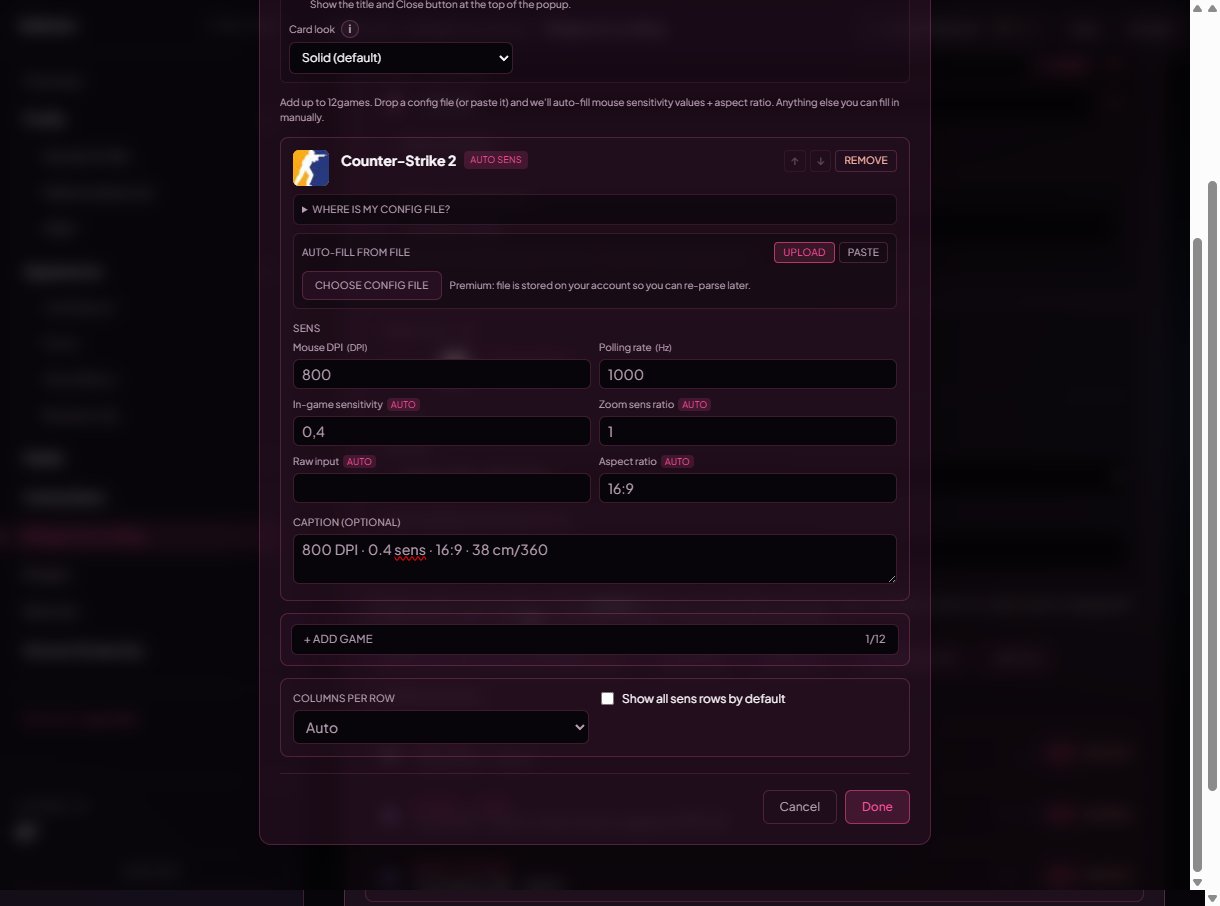
Layout controls — columns per row + show all sens by default (Premium).
Reorder + remove entries
Each card has ↑ / ↓ arrows to move it within the widget and a Remove button to delete just that game (the widget itself stays).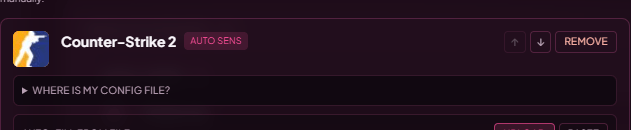
Per-entry controls — move up, move down, remove.
Limits
- 3 games per widget on free accounts. 12 on Premium.
- 16 widgets total per profile (every widget type counts toward this).
- Config upload max 512 KiB, with per-game caps that may be smaller (most are 256 KiB / 384 KiB).
- Custom logo upload max 2 MiB, types: PNG, WebP, JPEG, GIF.
Premium gating
What visitors see
- Each card shows the game icon, game name, your caption (if set), and a Sens section with the filled rows.
- Rows are ordered the same on every profile (DPI → polling rate → sens → scopes → aspect ratio) so visitors always know where to look.
- On mobile the grid usually drops to one column; on desktop it follows your Columns per row setting.
Common questions
Why is my VALORANT / Fortnite sens not auto-filling?
Why is my VALORANT / Fortnite sens not auto-filling?
It says my CS2 file isn't recognised
It says my CS2 file isn't recognised
cs2_user_convars_0_slot0.vcfg (it’s the slot-0 file, even if you only have one slot — Steam still numbers it). Look under Steam\userdata\<your-id>\730\local\cfg\. The classic config.cfg from CS:GO is not the right file.Where's my COD config?
Where's my COD config?
options.4.cod23.cst (or similar .cst per major version) under Documents\Call of Duty\players\. Drop the whole file in — we read the binary KeyValues blob directly.Rainbow Six Siege has weird sens fields
Rainbow Six Siege has weird sens fields
MouseYawSensitivity, MousePitchSensitivity) and per-scope ADS sens (1x, 1.5x, 2x, 2.5x, 3x, 4x, 5x, 12x). The widget surfaces those instead of the legacy combined MouseSensitivity because Ubisoft retired that key. The internal multiplier (XFactorAiming) is intentionally hidden — it’s a step size, not your real sens.Can I add Rust / Splatoon / Valorant Mobile / X?
Can I add Rust / Splatoon / Valorant Mobile / X?
My uploaded config file disappeared
My uploaded config file disappeared
I uploaded but no fields filled
I uploaded but no fields filled
video.txt instead of videoconfig.txt for Apex). Open the “Where is my config file?” drawer to see the accepted filenames. If you’re sure it’s the right file, paste the contents and re-try — and ping us in Discord with the game so we can fix the parser.Can I have two widgets — say one for ranked games, one for casual?
Can I have two widgets — say one for ranked games, one for casual?
What's the privacy story for the config file?
What's the privacy story for the config file?