

Page on the dashboard: dashboard.biolovers.site/dashboard/edit/account/two-factor
What 2FA does
After you turn it on, signing in needs two things:- Your password (something you know).
- A 6-digit code from an authenticator app on your phone (something you have).
What you need
Any TOTP authenticator app:- Google Authenticator (iOS / Android)
- Authy
- 1Password (built in)
- Bitwarden (built in)
- Microsoft Authenticator, Aegis, Raivo — any of them work.
Turn it on (2 minutes)
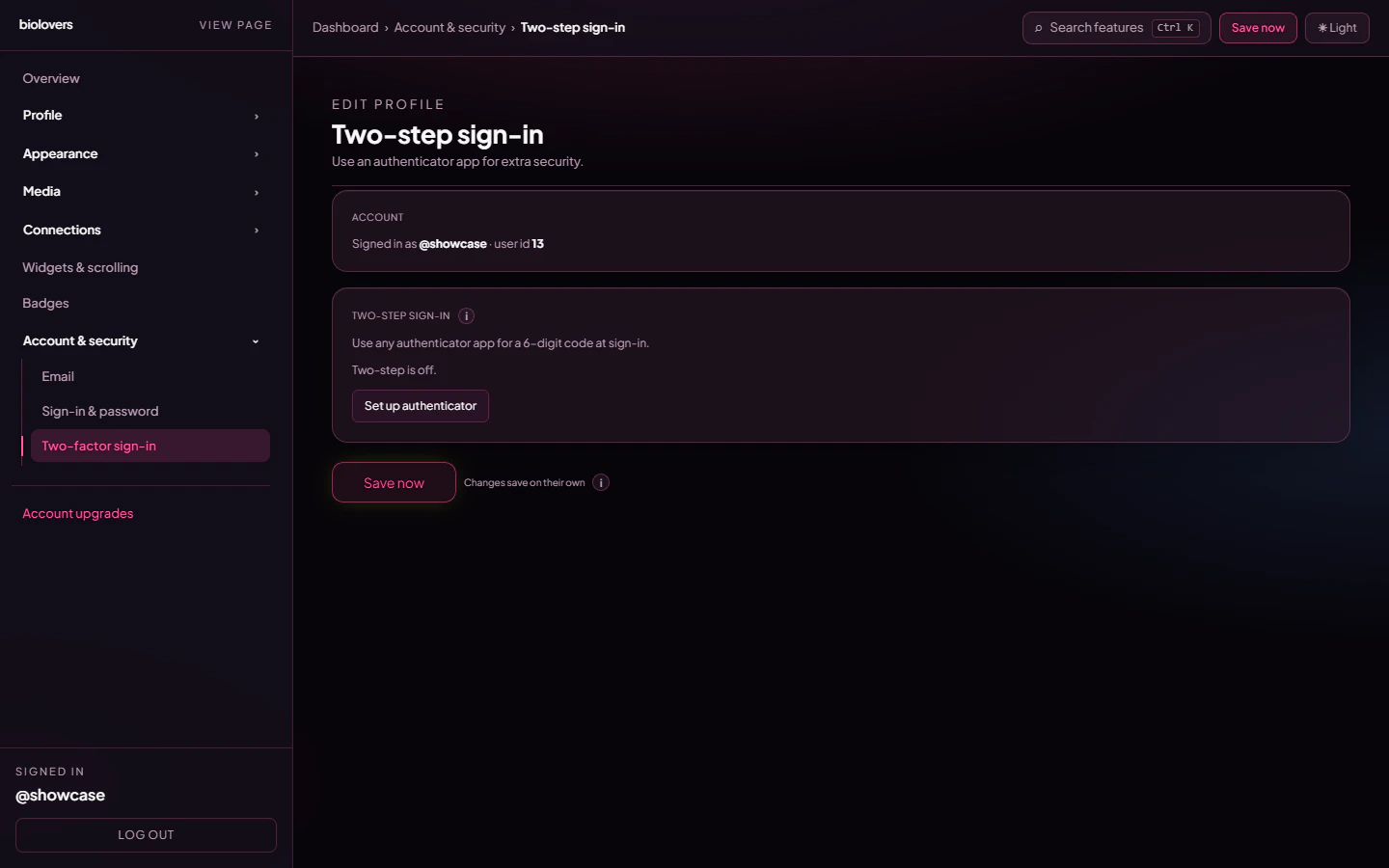
Two-step sign-in panel.
- Open the Two-step sign-in panel.
- Tap Set up authenticator. We show a QR code and a long secret string.
- In your authenticator app, tap Add → Scan QR code → point at your screen.
- Can’t scan? Tap enter manually in the app and type the secret.
- Your app starts spitting out a 6-digit code that changes every 30 seconds.
- Type the current code into the dashboard and tap Confirm & enable.
- Done. Next login will ask for an authenticator code.
Turn it off
On the same panel:- Type your account password into the Password (to disable 2FA) field.
- Tap Disable 2FA.
Lost the device
See I lost my 2FA. Short version: if you set up the same TOTP secret on a backup device or password manager, use that. Otherwise, open a ticket in our Discord or use the contact form.Common questions
Will SMS codes work?
Will SMS codes work?
No — only TOTP apps. SMS is widely considered insecure (SIM-swap attacks) and is not supported.
Can the same secret be on two phones?
Can the same secret be on two phones?
Yes. Either scan the QR with both, or copy the secret to a password manager that does TOTP. Both will produce the same code.
My code is rejected even though it looks right
My code is rejected even though it looks right
Check that your phone’s clock is set to automatic time. TOTP codes are time-based — if your phone clock drifts more than ~30s the code looks wrong to the server.
Does an email password reset disable 2FA?
Does an email password reset disable 2FA?
No. The email reset only changes your password — your TOTP setting stays as-is. If both your password and your authenticator are gone, see I lost my 2FA.