

Page on the dashboard: dashboard.biolovers.site/dashboard/edit/look/text-effects
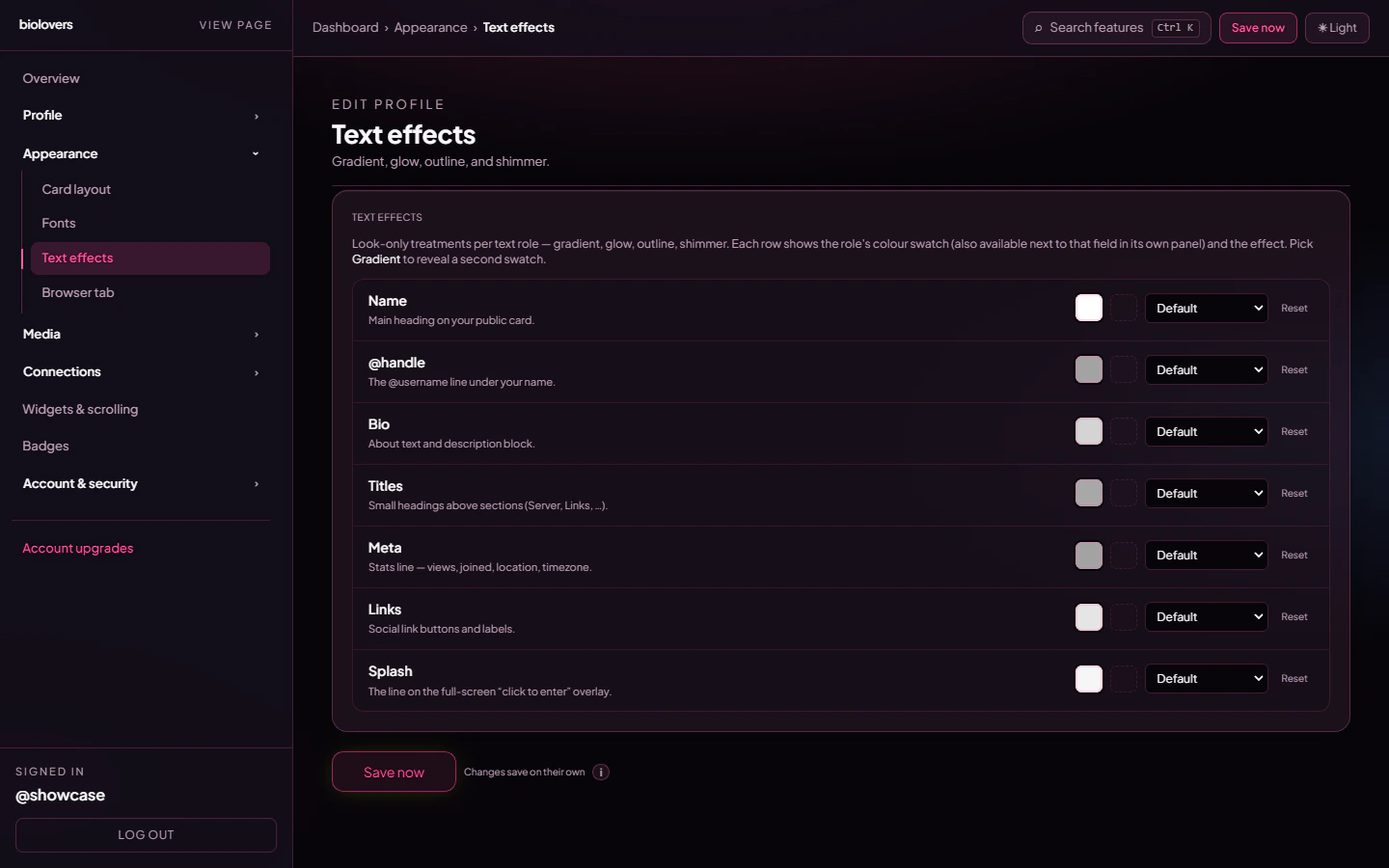
Text effects panel.
How rows work
Each row gives you:- Colour 1 swatch — primary colour for that role.
- Colour 2 swatch — only revealed when the effect is Gradient (or paired with Glow / Neon for the second halo color).
- Effect dropdown — the look. Default keeps the role’s normal colour.
- Reset — clears the row’s colours and effect.
Available effects
There is no “Shimmer” or “Gradient cycle” effect — past versions of this page mentioned them, but the live picker only ships the seven effects above.
Mixing across roles
Each role keeps its own settings. Some examples:- Display name → Gradient (purple → pink), @handle → Solid (white).
- Display name → Neon (cyan), Bio → Soft shadow (black) for legibility on busy backgrounds.
- Links → Glow so your social chips have a subtle hover-ready halo.
Tips
- Outline is great when your card panel is Transparent — letters stay readable on busy backgrounds.
- Rainbow ignores both colour pickers; use it as a one-tap fun option.
- Neon + Glow stacked across roles look more high-contrast than either alone.
Common questions
My second colour does nothing
My second colour does nothing
Only Gradient uses both swatches as endpoints. Glow and Neon use colour 2 as the second halo color, but if you set the same colour in both swatches it won’t be visible.
The gradient is one colour
The gradient is one colour
Make sure the two swatches are different hex values, and that the effect dropdown is set to Gradient (not Solid).
Where do I change the font itself?
Where do I change the font itself?
Different panel — see Fonts. Text effects only change colour treatments, not the typeface.
The outline looks pixelated
The outline looks pixelated
The stroke is fixed at 1.25 px — it scales with text size, so make the role’s font bigger if you want a chunkier outline.