> ## Documentation Index
> Fetch the complete documentation index at: https://help.biolovers.site/llms.txt
> Use this file to discover all available pages before exploring further.
# Page background
> The image or video behind your card. Upload a single file — the panel doesn't have its own colour picker or blur/dim controls.
Page on the dashboard: dashboard.biolovers.site/dashboard/edit/media/background
The big thing **behind** your profile card. The dashboard panel is intentionally minimal — just an upload slot and a preview.
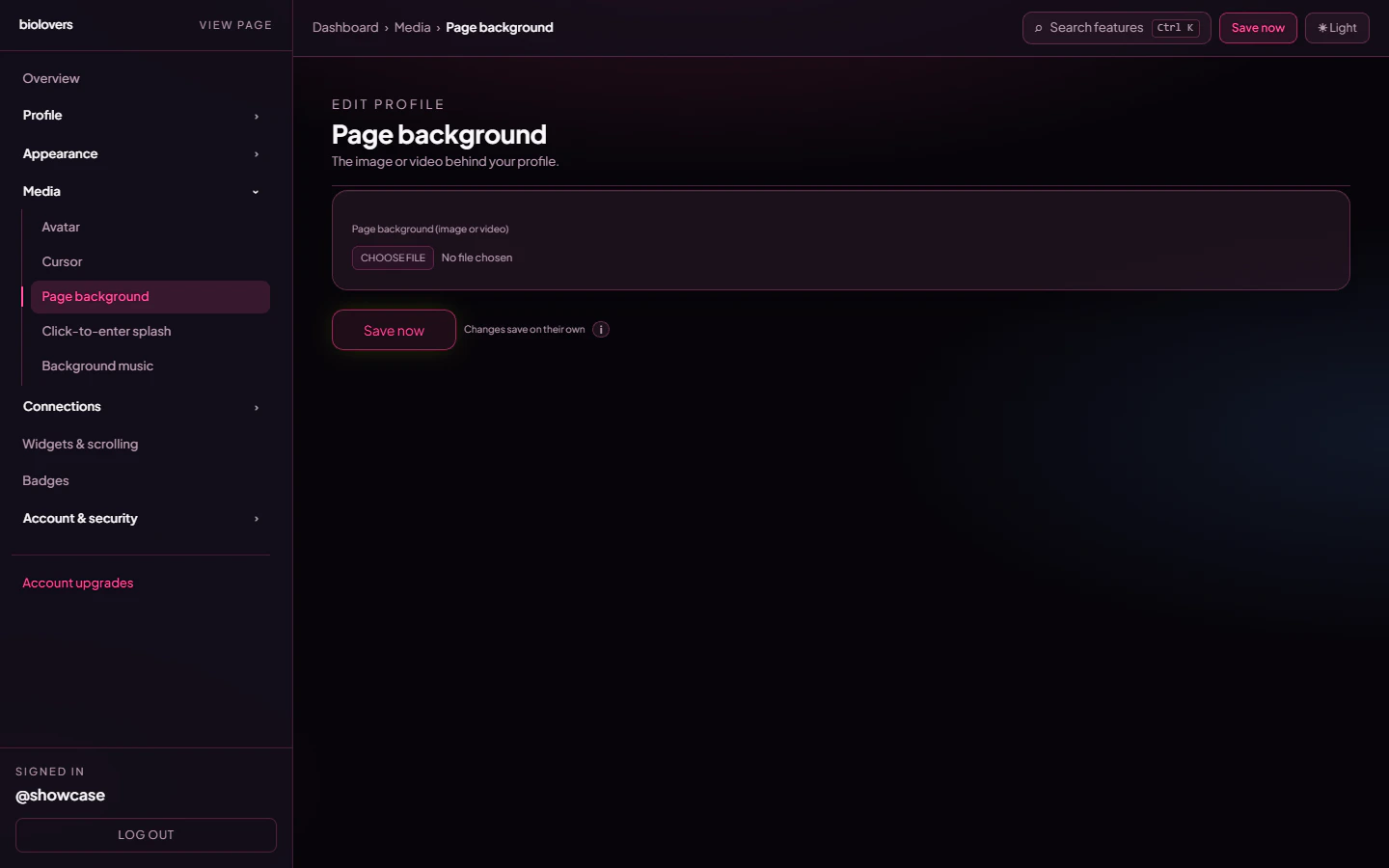 ## Upload
| Type | Formats | Max size |
| --------- | ----------------------- | ----------- |
| **Image** | JPEG / PNG / WebP / GIF | **10 MiB** |
| **Video** | MP4 / WebM / MOV | **100 MiB** |
Pick one file in the file picker. There is no separate "image / video / colour" mode toggle — the file you upload determines the type.
The image / video is auto-fitted to fully cover the screen (cropped if necessary).
## Video specifics
* Plays muted, loops, autoplays.
* Large videos are progressively transcoded to **HLS** for smoother streaming on slow connections; the original file is kept as a fallback.
* iOS only autoplays muted videos in low-power mode — there's nothing to toggle on our end.
## Remove
Tap **Remove** under the preview to clear the background. Your profile falls back to the default page colour from your theme.
## What the panel does **not** have
The panel is purely upload + preview. None of the following live here:
* Solid colour picker (use the [accent color](/profile/name-and-about) if you want a tinted feel — full background colour skinning isn't a separate control).
* Blur / dim / vignette / position / cover sliders.
* Mobile-fallback image — phones load the same file.
If you want a softer look behind text, set the **Card panel** to **Solid** in [Card layout](/appearance/card-layout) so the card itself blocks the busy area.
## Tips
* Heavy videos slow down first paint. If your audience is mostly on phones, prefer a **static image** under 1 MiB.
* For text legibility, switch the **Card panel** to **Solid** or use a [Text effect](/appearance/text-effects) **Outline / Soft shadow** on the bio.
## Common questions
The HLS transcode auto-picks bitrate based on the visitor's connection. Upload a higher-resolution source if your video looks soft on fast connections.
Not yet — backgrounds are per profile. Scroll pages share the same backdrop.
iOS only autoplays muted videos. We already enforce muted, but Low Power Mode on the visitor's device can still block it — that's a system setting we can't override.
Not directly. Use a card panel of **Solid** or apply an outline / soft-shadow text effect for contrast.
## Upload
| Type | Formats | Max size |
| --------- | ----------------------- | ----------- |
| **Image** | JPEG / PNG / WebP / GIF | **10 MiB** |
| **Video** | MP4 / WebM / MOV | **100 MiB** |
Pick one file in the file picker. There is no separate "image / video / colour" mode toggle — the file you upload determines the type.
The image / video is auto-fitted to fully cover the screen (cropped if necessary).
## Video specifics
* Plays muted, loops, autoplays.
* Large videos are progressively transcoded to **HLS** for smoother streaming on slow connections; the original file is kept as a fallback.
* iOS only autoplays muted videos in low-power mode — there's nothing to toggle on our end.
## Remove
Tap **Remove** under the preview to clear the background. Your profile falls back to the default page colour from your theme.
## What the panel does **not** have
The panel is purely upload + preview. None of the following live here:
* Solid colour picker (use the [accent color](/profile/name-and-about) if you want a tinted feel — full background colour skinning isn't a separate control).
* Blur / dim / vignette / position / cover sliders.
* Mobile-fallback image — phones load the same file.
If you want a softer look behind text, set the **Card panel** to **Solid** in [Card layout](/appearance/card-layout) so the card itself blocks the busy area.
## Tips
* Heavy videos slow down first paint. If your audience is mostly on phones, prefer a **static image** under 1 MiB.
* For text legibility, switch the **Card panel** to **Solid** or use a [Text effect](/appearance/text-effects) **Outline / Soft shadow** on the bio.
## Common questions
The HLS transcode auto-picks bitrate based on the visitor's connection. Upload a higher-resolution source if your video looks soft on fast connections.
Not yet — backgrounds are per profile. Scroll pages share the same backdrop.
iOS only autoplays muted videos. We already enforce muted, but Low Power Mode on the visitor's device can still block it — that's a system setting we can't override.
Not directly. Use a card panel of **Solid** or apply an outline / soft-shadow text effect for contrast.