> ## Documentation Index
> Fetch the complete documentation index at: https://help.biolovers.site/llms.txt
> Use this file to discover all available pages before exploring further.
# Discord & Telegram
> Link your Discord account, show your Discord presence, add a server invite, and link a Telegram channel.
Page on the dashboard: dashboard.biolovers.site/dashboard/edit/connect/discord
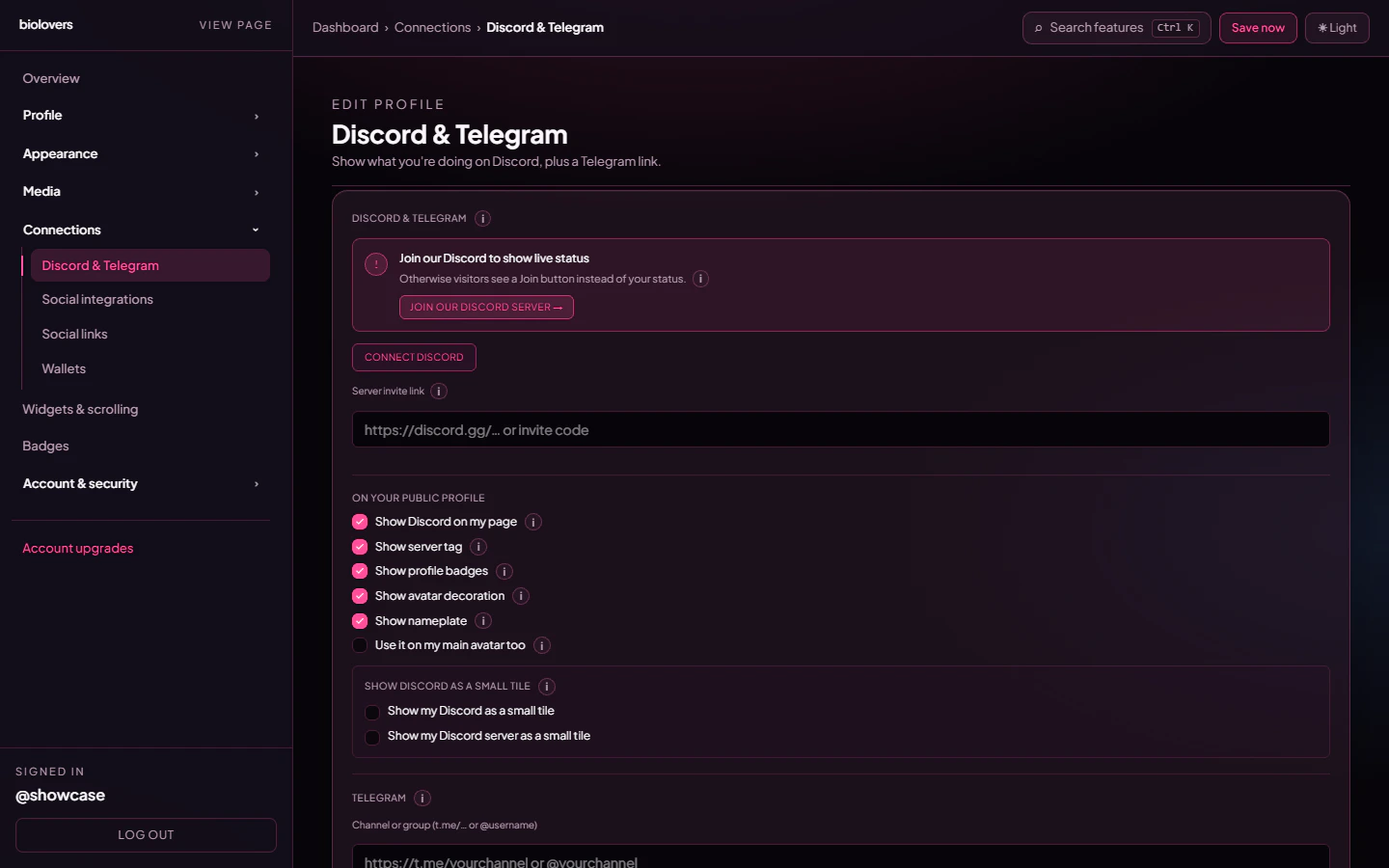
Two cards on the same panel — link your Discord account and configure a Telegram link. The Discord server invite is a separate input on the same panel.
 ## Link Discord
Tap **Connect Discord**. You'll be sent to Discord's OAuth screen — we ask for two scopes: `identify` and `email`. `identify` gives us your Discord ID, username, avatar, and global name; `email` is what lets the **Continue with Discord** button capture a verified email when you sign up. We never use it to merge two accounts — see [Sign in with Discord or Google](/getting-started/log-in#sign-in-with-discord-or-google).
Once linked we use the Discord ID to:
* Drive the **Discord presence card** on your profile (what you're playing / listening to / your status). The actual presence comes from the Biolovers Discord **bot** — it can only see your status when you **share at least one server with the bot** (the Biolovers Discord). The dashboard surfaces a "Join our Discord to show live status" banner explaining this.
* Grant / revoke the **Premium**, **Verified**, and **Donator** Discord roles after a purchase.
To unlink, tap **Disconnect** next to your Discord chip on the panel. We also expose a **Refresh from Discord** button that re-pulls your latest avatar, Nitro flags, and badges.
### Public profile toggles
Once linked, the **On your public profile** group surfaces a stack of checkboxes (real labels):
* **Show Discord on my page** — off keeps you linked for sign-in recovery / role grants but hides the Discord card from visitors.
* **Show server tag** — Discord's server-rep tag next to your name.
* **Show profile badges** — Nitro, HypeSquad, staff, etc.
* **Show avatar decoration** — the Nitro-Shop frame around your avatar on the Discord card.
* **Show nameplate** — the Nitro-Shop gradient artwork behind the Discord card.
* **Use it on my main avatar too** — also wrap the avatar decoration around your main profile avatar.
### Server invite
The **Server invite link** input takes a `https://discord.gg/…` URL or a bare invite code. Once a valid invite is set, we render the join card with the server icon, name, and online member count.
When you've linked Discord and set an invite, an extra dropdown appears:
* **Server invite placement** — `Inside the Discord card` or `Below the Discord card`.
### Show as small tile
The **Show Discord as a small tile** group has two checkboxes:
* **Show my Discord as a small tile** — moves the Discord presence to the live-tile grid instead of the big panel.
* **Show my Discord server as a small tile** — same idea for the server invite card.
## Sign in with Google
The same panel has a **Sign in with Google** row, right under your Discord connection. This is the dashboard side of the [Continue with Google](/getting-started/log-in#sign-in-with-discord-or-google) button — it changes how you can log in, not what shows on your public page.
* Tap **Connect Google** to link your Google account. After that, you can use **Continue with Google** on the login page to sign in with one tap.
* Once linked, the row shows **Connected** with a **Disconnect** button to unlink it.
This mirrors the Discord connection: linking either provider lets you sign in with it next time. Linking Google doesn't add a Google card to your page — there isn't one.
## Telegram
Below Discord, the Telegram block has:
* **Channel or group (`t.me/…` or `@username`)** — the URL or handle.
* **Show Telegram widget on my public page** — checkbox.
* **Show channel photo next to the Telegram block** — checkbox.
There's no live presence for Telegram — Telegram doesn't expose presence the way Discord does. The Telegram block renders as a join button with the channel photo (when enabled) and the channel name fetched from the public Telegram page.
## How presence is fetched
The Biolovers Discord bot connects to Discord's gateway and listens for presence updates from members of every server it shares with you. There is no Lanyard relay — the bot itself emits the presence to your profile. If you don't share a server with the bot, the card shows a **Join our Discord** call-to-action instead of your status.
## Common questions
See the dedicated page: [Discord presence offline](/troubleshooting/discord-presence-offline). Short answer: you need to share a server with the Biolovers Discord bot. Discord-status `Invisible` also reads as offline by design.
The number comes from the public guild widget which Discord refreshes lazily. Re-saving the invite forces a re-fetch.
We use whatever Discord returns, including emoji. To override the displayed name on your profile, use the [Display name](/profile/name-and-about) field — it doesn't change anything in Discord itself.
Edit the **Server invite link** field on the panel. Saves automatically a few seconds after you stop typing.
`identify` and `email`. `identify` powers the presence card and role grants; `email` lets a **Continue with Discord** sign-in capture a verified email. We do **not** request `guilds`, `guilds.members.read`, `guilds.join`, or any bot scopes.
## Link Discord
Tap **Connect Discord**. You'll be sent to Discord's OAuth screen — we ask for two scopes: `identify` and `email`. `identify` gives us your Discord ID, username, avatar, and global name; `email` is what lets the **Continue with Discord** button capture a verified email when you sign up. We never use it to merge two accounts — see [Sign in with Discord or Google](/getting-started/log-in#sign-in-with-discord-or-google).
Once linked we use the Discord ID to:
* Drive the **Discord presence card** on your profile (what you're playing / listening to / your status). The actual presence comes from the Biolovers Discord **bot** — it can only see your status when you **share at least one server with the bot** (the Biolovers Discord). The dashboard surfaces a "Join our Discord to show live status" banner explaining this.
* Grant / revoke the **Premium**, **Verified**, and **Donator** Discord roles after a purchase.
To unlink, tap **Disconnect** next to your Discord chip on the panel. We also expose a **Refresh from Discord** button that re-pulls your latest avatar, Nitro flags, and badges.
### Public profile toggles
Once linked, the **On your public profile** group surfaces a stack of checkboxes (real labels):
* **Show Discord on my page** — off keeps you linked for sign-in recovery / role grants but hides the Discord card from visitors.
* **Show server tag** — Discord's server-rep tag next to your name.
* **Show profile badges** — Nitro, HypeSquad, staff, etc.
* **Show avatar decoration** — the Nitro-Shop frame around your avatar on the Discord card.
* **Show nameplate** — the Nitro-Shop gradient artwork behind the Discord card.
* **Use it on my main avatar too** — also wrap the avatar decoration around your main profile avatar.
### Server invite
The **Server invite link** input takes a `https://discord.gg/…` URL or a bare invite code. Once a valid invite is set, we render the join card with the server icon, name, and online member count.
When you've linked Discord and set an invite, an extra dropdown appears:
* **Server invite placement** — `Inside the Discord card` or `Below the Discord card`.
### Show as small tile
The **Show Discord as a small tile** group has two checkboxes:
* **Show my Discord as a small tile** — moves the Discord presence to the live-tile grid instead of the big panel.
* **Show my Discord server as a small tile** — same idea for the server invite card.
## Sign in with Google
The same panel has a **Sign in with Google** row, right under your Discord connection. This is the dashboard side of the [Continue with Google](/getting-started/log-in#sign-in-with-discord-or-google) button — it changes how you can log in, not what shows on your public page.
* Tap **Connect Google** to link your Google account. After that, you can use **Continue with Google** on the login page to sign in with one tap.
* Once linked, the row shows **Connected** with a **Disconnect** button to unlink it.
This mirrors the Discord connection: linking either provider lets you sign in with it next time. Linking Google doesn't add a Google card to your page — there isn't one.
## Telegram
Below Discord, the Telegram block has:
* **Channel or group (`t.me/…` or `@username`)** — the URL or handle.
* **Show Telegram widget on my public page** — checkbox.
* **Show channel photo next to the Telegram block** — checkbox.
There's no live presence for Telegram — Telegram doesn't expose presence the way Discord does. The Telegram block renders as a join button with the channel photo (when enabled) and the channel name fetched from the public Telegram page.
## How presence is fetched
The Biolovers Discord bot connects to Discord's gateway and listens for presence updates from members of every server it shares with you. There is no Lanyard relay — the bot itself emits the presence to your profile. If you don't share a server with the bot, the card shows a **Join our Discord** call-to-action instead of your status.
## Common questions
See the dedicated page: [Discord presence offline](/troubleshooting/discord-presence-offline). Short answer: you need to share a server with the Biolovers Discord bot. Discord-status `Invisible` also reads as offline by design.
The number comes from the public guild widget which Discord refreshes lazily. Re-saving the invite forces a re-fetch.
We use whatever Discord returns, including emoji. To override the displayed name on your profile, use the [Display name](/profile/name-and-about) field — it doesn't change anything in Discord itself.
Edit the **Server invite link** field on the panel. Saves automatically a few seconds after you stop typing.
`identify` and `email`. `identify` powers the presence card and role grants; `email` lets a **Continue with Discord** sign-in capture a verified email. We do **not** request `guilds`, `guilds.members.read`, `guilds.join`, or any bot scopes.