> ## Documentation Index
> Fetch the complete documentation index at: https://help.biolovers.site/llms.txt
> Use this file to discover all available pages before exploring further.
# Text effects
> Per-role text effects — solid, gradient, glow, neon, outline, soft shadow, rainbow — with two-color support. Premium only.
Page on the dashboard: dashboard.biolovers.site/dashboard/edit/look/text-effects
The entire **Text effects** panel is **Premium-only**. Free accounts can open it but the controls are dimmed and uneditable.
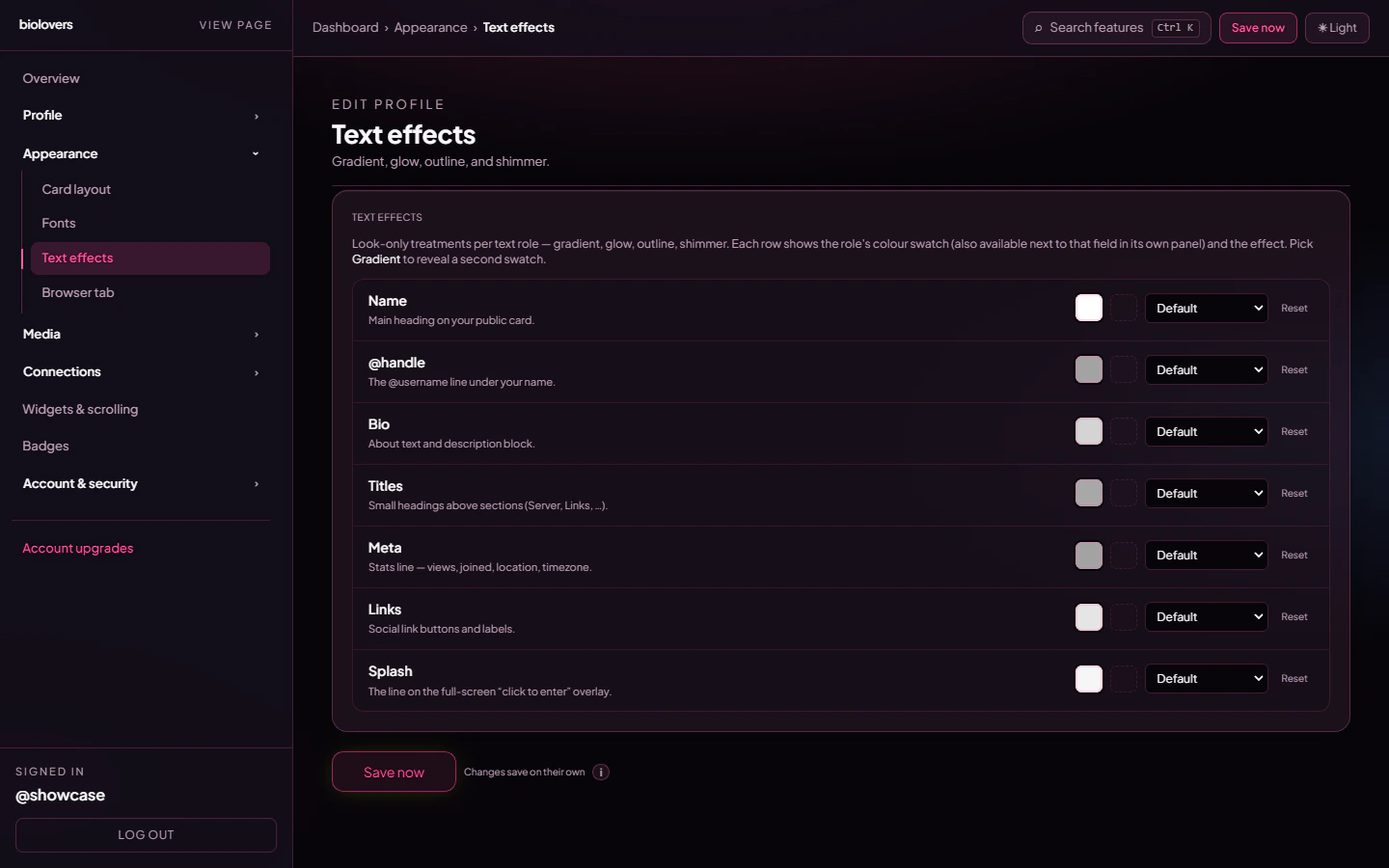
Per-role text treatments — gradient, glow, outline, etc. Each text role on your profile (display name, @handle, bio, links, labels…) has its own row with its own colour swatches and effect picker.
 ## How rows work
Each row gives you:
* **Colour 1 swatch** — primary colour for that role.
* **Colour 2 swatch** — only revealed when the effect is **Gradient** (or paired with Glow / Neon for the second halo color).
* **Effect dropdown** — the look. Default keeps the role's normal colour.
* **Reset** — clears the row's colours and effect.
## Available effects
| Effect (UI label) | What it looks like |
| -------------------- | ----------------------------------------------------------------------------------- |
| **Default** | The role's stock styling — no override. |
| **Solid** | Plain flat colour using the colour-1 swatch. |
| **Gradient** | Linear gradient from colour 1 to colour 2 across the text. |
| **Outline** | Hollow letters with a 1.25 px stroke in colour 1. |
| **Glow** | Letters in colour 1 with a soft 12-28 px halo (uses colour 2 for the second layer). |
| **Neon** | Brighter, three-layer halo for a sign-on-the-wall look. |
| **Soft shadow** | Letters in colour 1 with a soft drop shadow. |
| **Rainbow (inline)** | Pre-baked five-stop rainbow gradient — colour pickers ignored. |
There is **no** "Shimmer" or "Gradient cycle" effect — past versions of this page mentioned them, but the live picker only ships the seven effects above.
## Mixing across roles
Each role keeps its own settings. Some examples:
* **Display name → Gradient (purple → pink)**, **@handle → Solid (white)**.
* **Display name → Neon (cyan)**, **Bio → Soft shadow (black)** for legibility on busy backgrounds.
* **Links → Glow** so your social chips have a subtle hover-ready halo.
## Tips
* **Outline** is great when your card panel is **Transparent** — letters stay readable on busy backgrounds.
* **Rainbow** ignores both colour pickers; use it as a one-tap fun option.
* **Neon + Glow** stacked across roles look more high-contrast than either alone.
## Common questions
Only **Gradient** uses both swatches as endpoints. **Glow** and **Neon** use colour 2 as the second halo color, but if you set the same colour in both swatches it won't be visible.
Make sure the two swatches are different hex values, and that the effect dropdown is set to **Gradient** (not Solid).
Different panel — see [Fonts](/appearance/fonts). Text effects only change colour treatments, not the typeface.
The stroke is fixed at 1.25 px — it scales with text size, so make the role's font bigger if you want a chunkier outline.
## How rows work
Each row gives you:
* **Colour 1 swatch** — primary colour for that role.
* **Colour 2 swatch** — only revealed when the effect is **Gradient** (or paired with Glow / Neon for the second halo color).
* **Effect dropdown** — the look. Default keeps the role's normal colour.
* **Reset** — clears the row's colours and effect.
## Available effects
| Effect (UI label) | What it looks like |
| -------------------- | ----------------------------------------------------------------------------------- |
| **Default** | The role's stock styling — no override. |
| **Solid** | Plain flat colour using the colour-1 swatch. |
| **Gradient** | Linear gradient from colour 1 to colour 2 across the text. |
| **Outline** | Hollow letters with a 1.25 px stroke in colour 1. |
| **Glow** | Letters in colour 1 with a soft 12-28 px halo (uses colour 2 for the second layer). |
| **Neon** | Brighter, three-layer halo for a sign-on-the-wall look. |
| **Soft shadow** | Letters in colour 1 with a soft drop shadow. |
| **Rainbow (inline)** | Pre-baked five-stop rainbow gradient — colour pickers ignored. |
There is **no** "Shimmer" or "Gradient cycle" effect — past versions of this page mentioned them, but the live picker only ships the seven effects above.
## Mixing across roles
Each role keeps its own settings. Some examples:
* **Display name → Gradient (purple → pink)**, **@handle → Solid (white)**.
* **Display name → Neon (cyan)**, **Bio → Soft shadow (black)** for legibility on busy backgrounds.
* **Links → Glow** so your social chips have a subtle hover-ready halo.
## Tips
* **Outline** is great when your card panel is **Transparent** — letters stay readable on busy backgrounds.
* **Rainbow** ignores both colour pickers; use it as a one-tap fun option.
* **Neon + Glow** stacked across roles look more high-contrast than either alone.
## Common questions
Only **Gradient** uses both swatches as endpoints. **Glow** and **Neon** use colour 2 as the second halo color, but if you set the same colour in both swatches it won't be visible.
Make sure the two swatches are different hex values, and that the effect dropdown is set to **Gradient** (not Solid).
Different panel — see [Fonts](/appearance/fonts). Text effects only change colour treatments, not the typeface.
The stroke is fixed at 1.25 px — it scales with text size, so make the role's font bigger if you want a chunkier outline.